
How to import your whole Garmin history
Garmin gives apps only the recent months. You can bring in the whole history with its data export: workouts from every year land in your calendar and statistics. Free on every plan.
When you connect Garmin, you don't get your whole history: Garmin gives third-party apps only the recent months. The whole history is in the export of your data, which Garmin builds on request. You can upload this export to Training Endurance in full — workouts from every year land in your calendar and statistics, and your coach sees them.
1. Request the export from Garmin
On Garmin's website, open the Export Your Data page and request an export. Sign in to the Garmin account whose workouts you are moving. The import block links to this page too.
2. Wait for the email
Garmin builds the archive itself and emails you a link — from a few hours to a few days later. Download the zip from the link. Don't unpack it: the import takes the archive as it came. A computer is the easiest place to download it to and upload it from.
3. Upload the archive
Open Settings → Settings tab → Garmin Connect. At the bottom of the window is the Import your whole history block. You don't need to have Garmin connected for this.
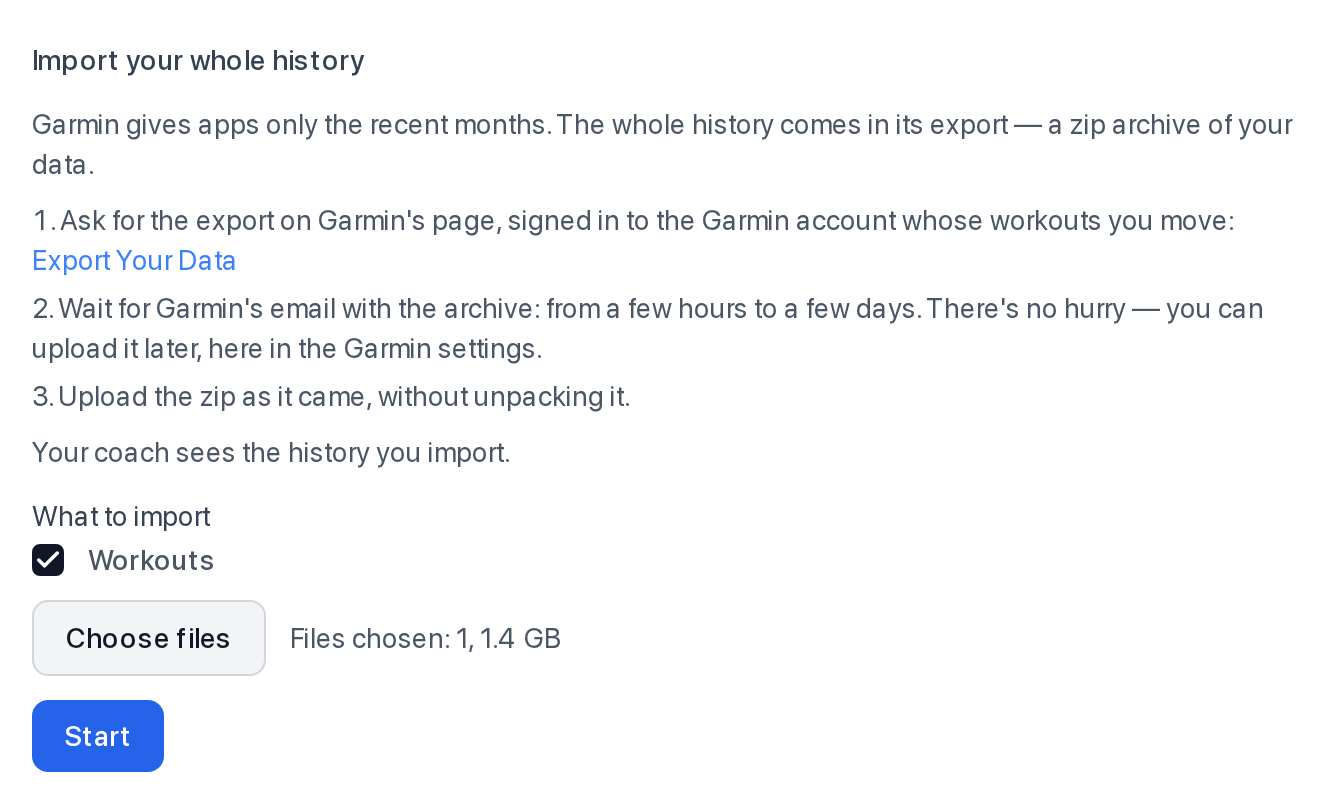
- Click Choose files and pick the zip from the email. If Garmin sent several archives, choose them all at once: up to 8 files, no more than 4.2 GB in all.
- Click Start.
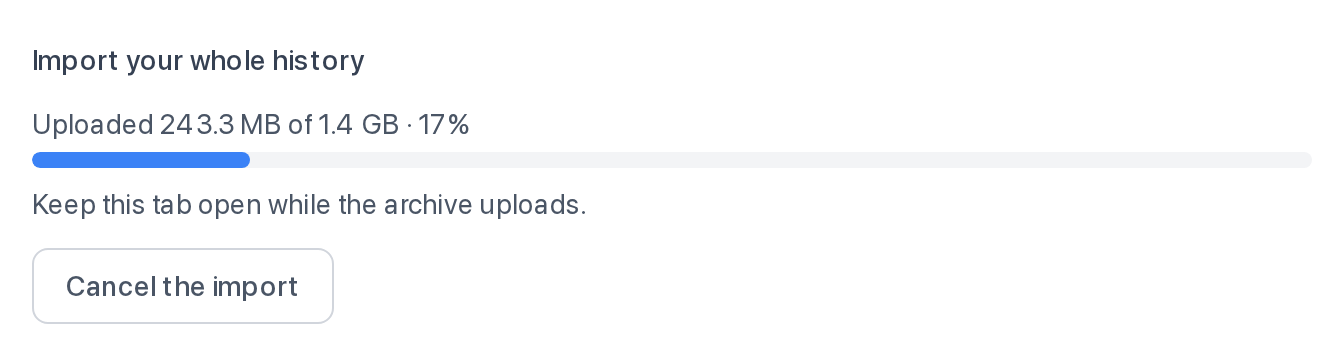
- Keep the tab open while the archive uploads: the file goes straight from your browser.
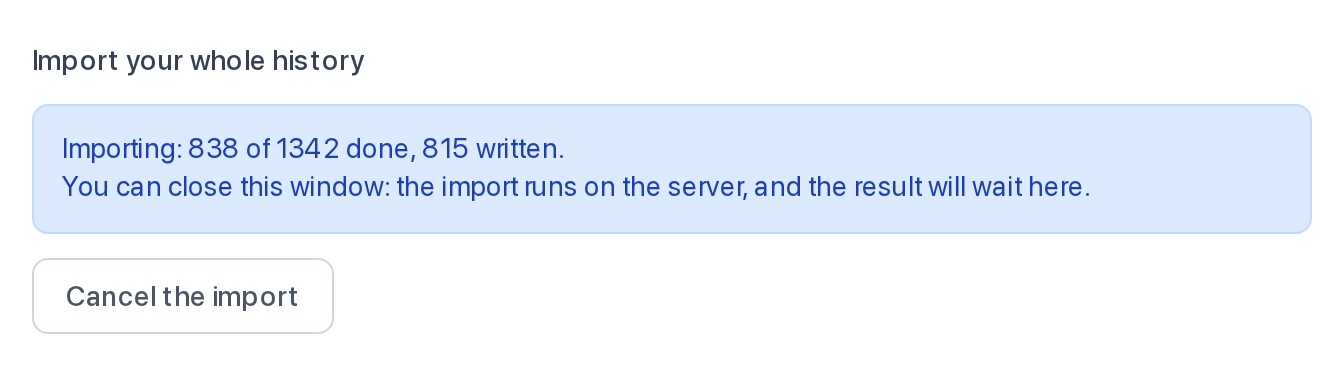
Once the archive is uploaded, you can close the window: the server reads the export and writes the workouts on its own, and the result waits for you in the same block.
There's nothing to confirm: Workouts is ticked from the start, and writing begins as soon as the archive is read. If you untick it, the block says "The archive is read. Choose what to import by …" and waits 7 days for you to click Import.
4. Check the result
When the import is over, the block shows what was written and what was skipped, with reasons. Click Got it to clear the result.
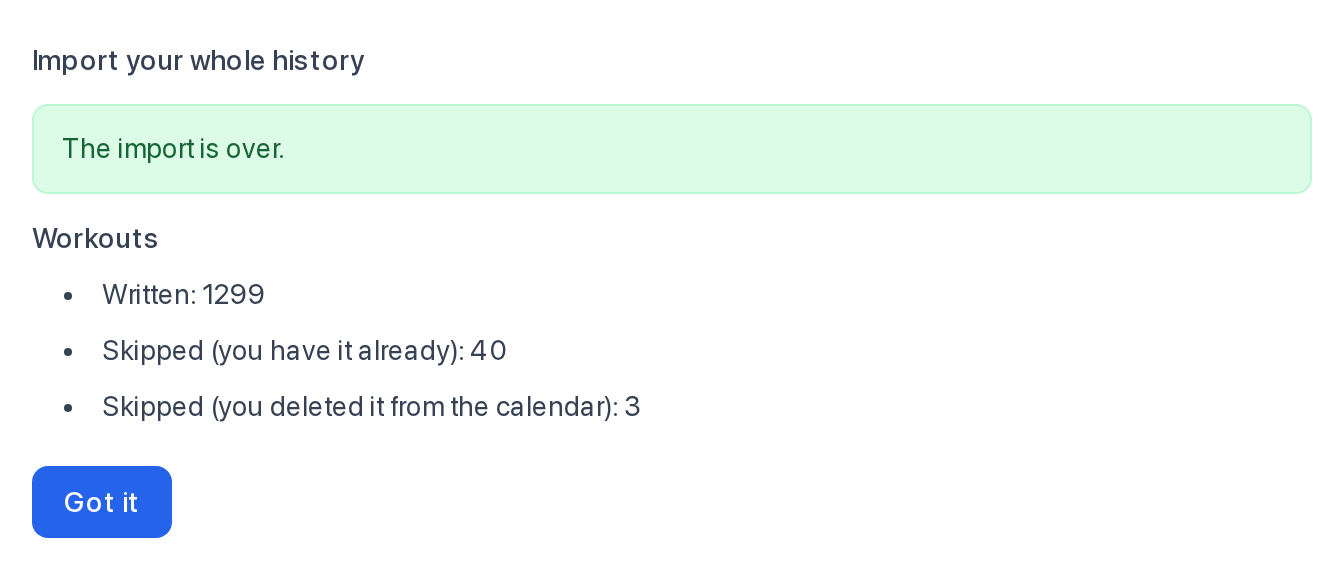
Reasons a workout isn't written:
- you have it already — this workout already came in from Garmin;
- you deleted it from the calendar — the import doesn't bring back what you deleted;
- the file is larger than an import takes — the workout's file is over 64 MB.
How the import places workouts in your calendar:
- if a planned workout without a result is at that time, the imported one becomes its result — just as with the regular sync;
- if a workout with a result is already at that time, for example from another service, the import leaves it as it is and doesn't create a second one;
- otherwise, a new workout appears.
If the upload stopped
- The connection dropped. The block says "The upload stopped." — click Retry, there's no need to choose the files again.
- The page reloaded, or you are on another device. The block asks you to choose the same files and shows their sizes — choose them and click Continue. The upload picks up where it stopped.
You can only resume at the same app address where the upload began: for example, an upload begun at app.trainingendurance.com resumes only there.
After you click Start, you have 7 days for the upload. If time runs out, the block says "The time for the upload is out" — cancel the import and start again.
Limits
- A Garmin export only, and workouts only. The block won't take another service's export.
- Up to 8 archives in one import, no more than 4.2 GB in all.
- No more than five imports a day, and one at a time.
- Only the athlete can run the import: a coach can't do it for them.
Cancelling
You can cancel the import at any step with Cancel the import. What has been written stays.
FAQ
- Do I need to connect Garmin to upload my history?
- No. The Import your whole history block works without Garmin connected.
- How much does the import cost?
- Nothing: the import works on every plan.
- Will I get duplicates if Garmin is already connected?
- No. A workout that already came in from Garmin isn't written twice: the result lists it as "you have it already". If your calendar already has a workout with a result at that time, no second workout appears either.
- Can I upload an export from Strava, Polar or another service?
- No. The import takes only a Garmin export, and it brings in workouts only.