Your whole Garmin history: how to bring years of training into Training Endurance
Garmin gives apps only the last few months. Now you can upload its data export in full: workouts from every year land in your calendar and statistics, and your coach sees them. Free on every plan.

You connect Garmin, and your calendar fills with the last few months of workouts. The years before that stay behind in Garmin Connect. It isn't us: Garmin gives third-party apps only your recent history.
The whole history lives somewhere else — in the export of your data that Garmin puts together on request. You can now upload that export to Training Endurance in full, and workouts from every year land in your calendar and statistics.
Why the whole history
- Statistics across years. Volume, time and elevation gain by year and by month: you see how your load grew and where it dipped.
- Your coach sees where you come from. A new coach doesn't have to ask about past seasons — they open your calendar and see them.
- Past races at hand. Open the weeks before last year's marathon and look at how you prepared for it.
Imported workouts are processed the same way as the ones that arrive through the Garmin sync — they are ordinary workouts in your calendar.
How to bring your history over
1. Request the export from Garmin
On Garmin's website, open the Export Your Data page and request an export. Sign in to the Garmin account whose workouts you are moving. The import block links to this page too.
2. Wait for the email
Garmin builds the archive itself and emails you a link to it — anywhere from a few hours to a few days later. There's no hurry: you can upload the archive whenever you like.
Download the zip from the link in the email. Don't unpack it: the import takes the archive as it came. A computer is the easiest place for it — you'll upload it from there.
3. Upload the archive
In Training Endurance, open Settings, find Garmin Connect and open its settings. At the bottom of the window is the Import your whole history block. You don't need to have Garmin connected for this.
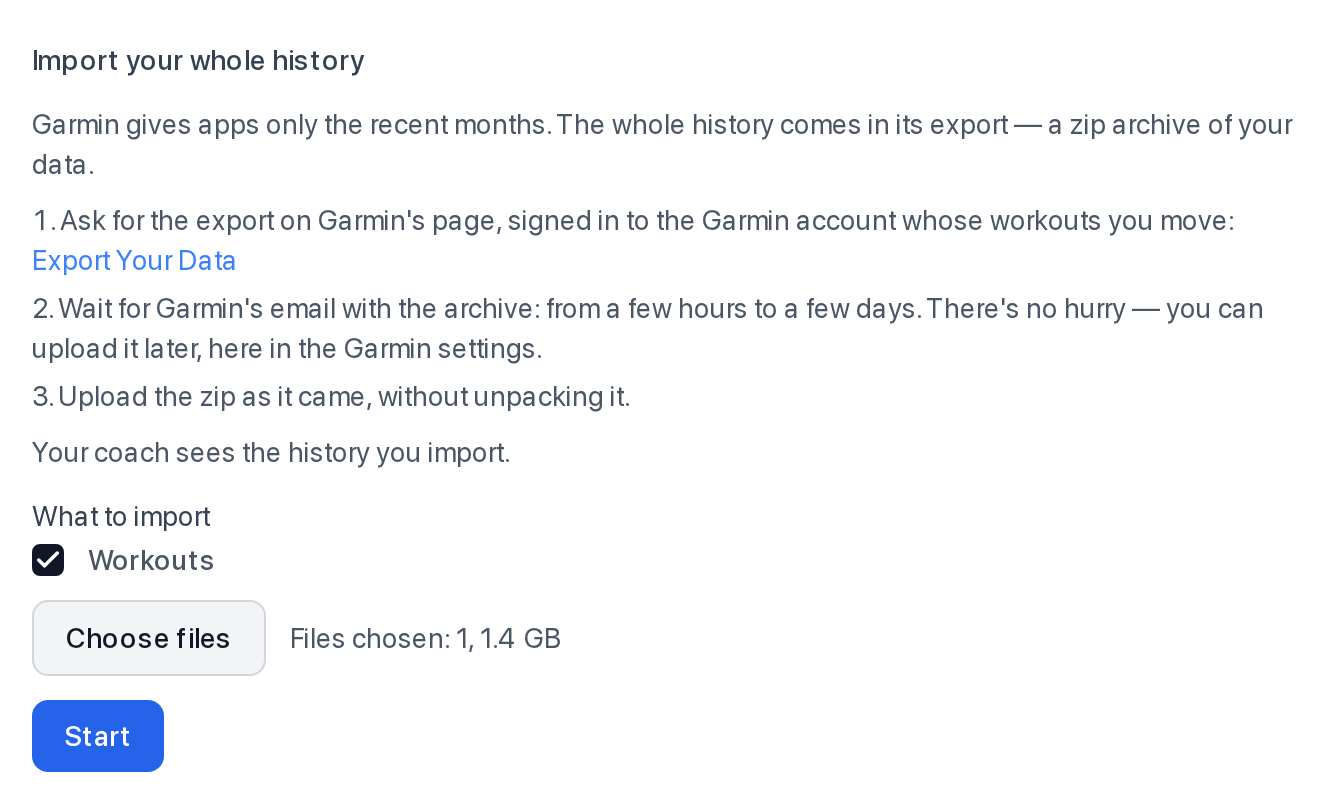
Click Choose files, pick the zip from the email and click Start. If Garmin sent several archives, choose them all at once: up to 8 files, 4 GB in all.
Keep the tab open while the archive uploads: the file goes straight from your browser. A large export takes from a few minutes to an hour on a home connection.
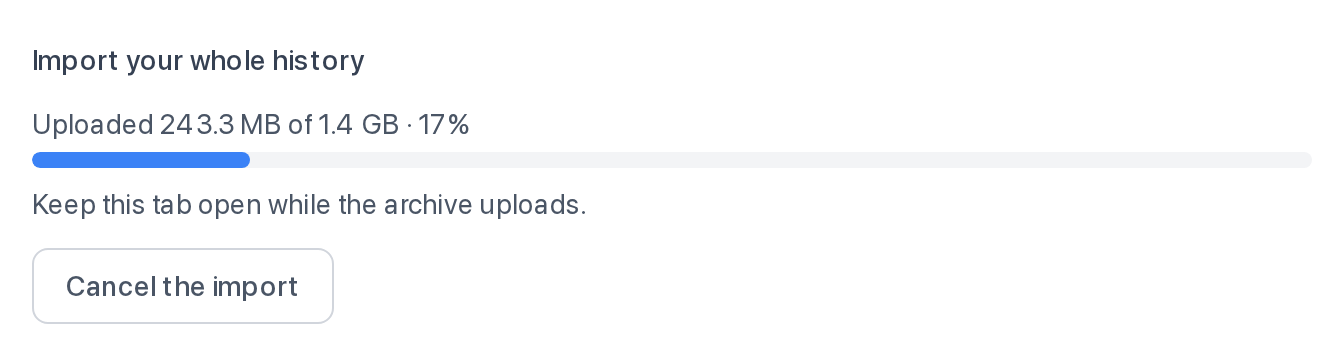
If the connection drops or the page reloads, choose the same files again and the upload picks up where it stopped.
4. The server takes it from there
Once the archive is uploaded, you can close the window: the server reads the export and writes the workouts on its own, and the result waits for you in the same block. Reading takes minutes.
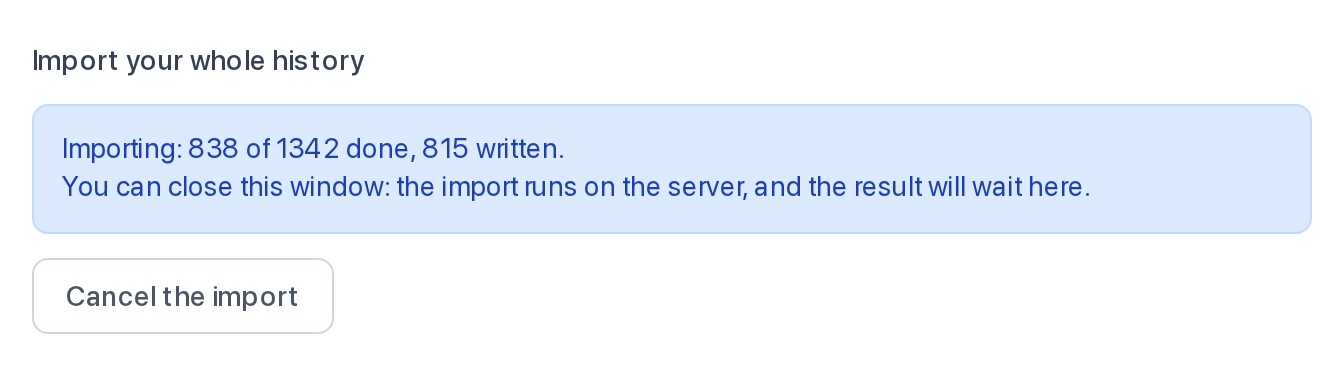
There's nothing to come back and confirm: Workouts is ticked from the start, and writing begins as soon as the archive is read.
5. Check the result
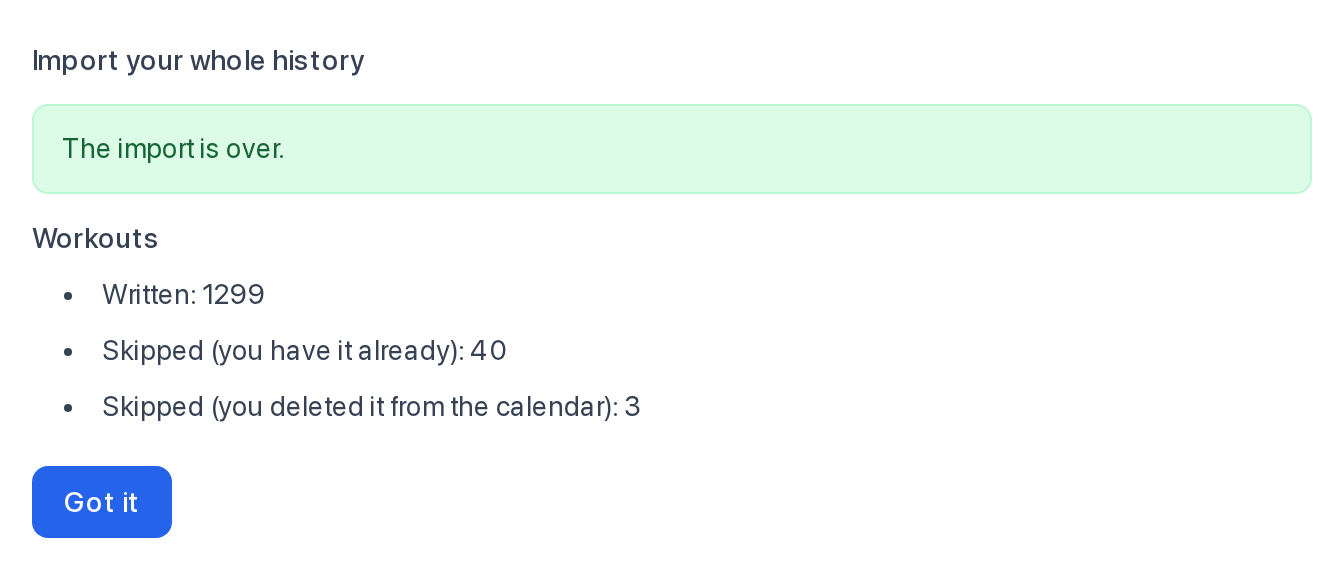
When the import is over, the block shows how many workouts were written, how many were skipped, and why.
Good to know
- No duplicates. Workouts that already came in through the Garmin sync aren't written twice — the result lists them as "you have it already".
- Deleted stays deleted. If you once deleted a workout from your calendar, the import won't bring it back.
- Your coach sees the history. Imported workouts show up for your coach like the rest of your workouts.
- You can cancel at any step. What has been written stays.
- Free. The import works on every plan.
- Garmin and workouts only. For now the import takes no exports from other services and no other Garmin data.
In short
- Request an export on Garmin's Export Your Data page.
- Wait for the email and download the zip.
- In the app, open Settings → Garmin Connect → Import your whole history, choose the zip and click Start.
- Wait for the archive to upload — after that you can close the window.
- Check the result: your history is already in the calendar and statistics.